
VPN for Windows 10 and 11: safe setup and checks
Use this guide to install GhostMesh on Windows, verify the installer before running it, and understand the first checks that matter when a VPN changes routes, DNS, and firewall policy.
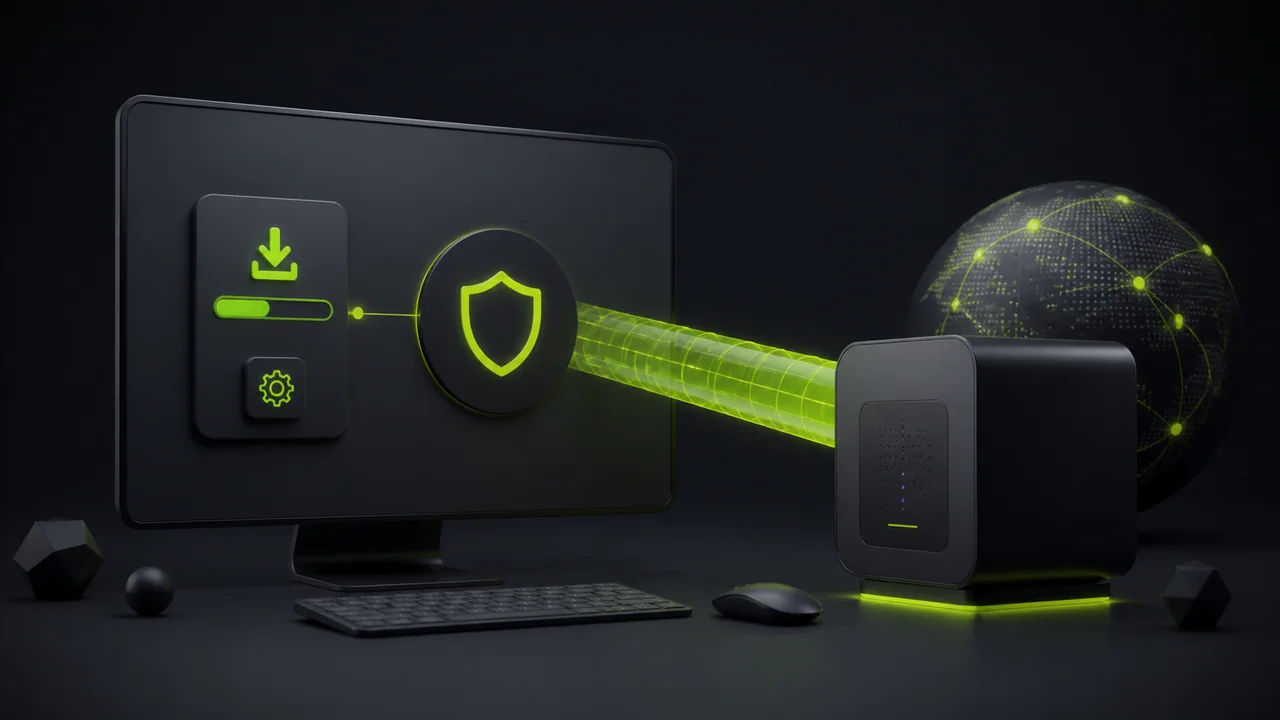
Quick answer
Download GhostMesh only from the official Windows page, compare the SHA256 hash before running the installer, then connect and verify DNS, kill switch, and app routing before relying on the tunnel for sensitive work.
Before you install
Use the HTML download page rather than a direct file copied from search results. The page gives you the current version, release date, and integrity hash in one place.
If Windows SmartScreen appears, treat it as a reputation warning for a young app. Pair the warning with code signing and SHA256 verification instead of clicking through blindly.
Checklist
- ✓Download from the official GhostMesh Windows page
- ✓Check the release version and date
- ✓Keep the SHA256 value visible before opening the installer
Verify the installer hash
Open PowerShell or Command Prompt and run the certutil command shown on the download page. The printed hash must match the published SHA256 exactly.
A matching hash confirms the file was not changed in transit or on disk. If it does not match, delete the file and download it again from the official page.
First connection checks
After connecting, open a simple IP check and a DNS leak test. The public IP and DNS resolvers should match the active route, not your usual ISP path.
If you use split tunneling, test both a tunneled app and an excluded app. The result should match the rule you configured.
| Check | Expected result |
|---|---|
| Public IP | VPN exit for tunneled traffic |
| DNS leak test | Resolvers that belong to the VPN path |
| Split tunneling | Only selected apps bypass the tunnel |
Common Windows problems
If the VPN connects but websites do not load, check DNS first, then kill switch state, then local firewall or antivirus network filters.
If the app was force-closed, restart GhostMesh before changing system proxy or adapter settings manually. The client is designed to restore its own routing state.
- DNS cache or third-party DNS filters can keep stale behavior after reconnect.
- Corporate proxies and antivirus HTTPS scanning can interfere with tunnel readiness.
- Sleep/wake transitions can require one clean reconnect before testing again.
FAQ
Is SmartScreen always a sign of malware?
No. SmartScreen often warns about new or low-reputation downloads. Verify the SHA256 hash and use official links before deciding.
Should I install EXE or MSI?
Use the package recommended on the current download page. Both should expose release data and integrity checks.